Chapter 4
Bays
Bays are used to add additional equipment in computer. In computer bays are presented in 3.5 to 5.25 inches.
Types of bays
- Internal Drive Bays
- External bays
Internal bays
Internal bays are resided entirely inside the computer system.
External bays
Internal bays are resided entirely outside the computer system
Buses
Buses
In PC, a bus is a outline that transfers information among parts inside a PC or between PCs.
Computer bus types
- System Bus
- Internal Bus
- External Bus
- Expansion Bus
- Address Bus
A bus’s geography or configuration can likewise be utilized in alternate manners to portray advanced associations. A bus might be equal or sequential. Equal transports send information across numerous wires. Sequential transports send information in piece sequential arrangement. A bus was initially an electrical equal design with channels associated with indistinguishable or comparative CPU pins, for example, a 32-digit transport with 32 wires and 32 pins. In an organization, a transport is an advanced construction that will send information in either equal transport or sequential transport design along a bunch of hubs.
Example of bus: The most common example of the bus is the connection of landline telephone. Assume that if we have a two story house and we want a connection of landline telephone on each story (floor). Then give one question.
Expansion bus
Expansion bus is an collection of cables that permits for computer expansion with the usage of an expansion board, a printed circuit board implanted into an expansion slot.
Data Representation
Data
Data refers to symbols that denote people, events, things, and thoughts. The data can be names, numbers, picture colors or musical notes in a musical composition.
Data Representation
Data representation means putting data into bits. (A bit is the unit of data). With data representation, data is represented and organized into appropriate graphs, diagrams, words, and images.
Kinds of Data Representation
- Decimal number system
- Binary number system
- Octal number system
- Hexadecimal number system
Decimal number system:
Decimal system is also Arabic number system. It takes the value between (0-9), where 0 is the smallest and nine is the largest. The digit or column on the left has the greatest value, while the digit on the right as the lowest value.
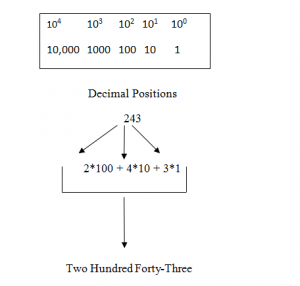
Binary number system:
It uses 2 as a base and therefore only needs two different symbols that are required in the decimal system.

Octal number system
It is the base 8 number uses the digits 0 to 7.Octal numbers can be formed from binary numbers by grouping successive. Binary digits in groups of three. E.g the binary representation for the decimal number 74 is 1001010.
Hexadecimal number system
It means 16 in Greek. So, it is also called the base 16 number system. In this number system there are used 16 digits that are used to represent number system are 1,2,3,4,5,6,7,8,9,A,B,C,D,E,F.
Expansion slot
Expansion slot
An expansion slot is a socket on the motherboard that has additional traits to computer such as audio, video, memory and graphics and used to insert a circuit board in computer. The expansion slot has on side connector that enlarges in the expansion slot as well as row of contacts that is basically plan to signify an electronic or charged connection between motherboard and the electrons on card that is basically provided a unit or fuses the circuit. Computer system can be everywhere from one to seven expansion slot. With the help of multi-port system 19 different slots can easily be induct in a computer. to attach with the cards to the slots.
Adapter cards
An adapter is an inner expansion card that permits the computer to communicate with another fringe. By attaching regulator or switches for distinct devices or by replacing jammed non-functional ports, it increases the computers performance. For example monitor or video card.
Removable flash memory
memory is an electric non-volatile processor memory storage that can be electrically removed and reprogrammed. It is fundamentally utilized for convey data among personal computers and digital devices. It is also obtainable in USB flash drives, MP3 players, digital cameras and solid-state devices. memory is a type of electronically erasable reprogrammable memory (EEPROM) but may be a distinct alone memory storing gadget such as USB drives.
KEEPING YOUR COMPUTER OR MOBILE DEVICE CLEAN
Cleaning your computer on daily bases is important to keep computer clean.
Hygiene the keyboard
Hygiene the mouse
Hygiene the screen
Hygiene the ports
Hygiene the internal system
Ports and connection
Ports
A Computer Port is an interface or a state of association between the PC and its edge devices which include mouse, keyboard, monitor or printer, speaker, drives and so on. The fundamental capacity of port is to go about as a state of connection, where the connection from the edge device can be connected and permits information to move from and to the devices.
Example: Parallel ports, display ports and HDMI ports are some examples of ports
Connection
The attachment of at least two devices effectively sending and getting data. For instance, in the event that you are reading a page, your PC has good Internet connection. On the off chance that the connection was interrupted at your home or office, nothing on the Internet would work. In the event that the connection couldn’t be set up with the server hosting the site page, you would be not able to see the site page, however all the other things on the Internet would in any case work.
Example: DVI, composite, RCA, S-Video, MIDI, HDMI and many others.
USB ports
It means “Universal Serial Bus.” USB is the widely recognized type of computer port used in the current PCs. It tends to be used to connect keyboards, joy pad, joy sticks, scanners, advanced cameras, just to give some examples. With the assistance of a some USB hubs, you can interface up to 127 peripherals to a single USB port and use them at the same time. USB is additionally quicker than more established ports, like serial and parallel ports.
Fire Wire ports
Alongside USB, Fire wire (additionally called IEEE 1394) is another famous connector for adding peripherals to your PC. Fire wire is regularly used to join digital camcorders, external hard drives, and different devices that can help by the high transfer rates (up to 480 Mbps) upheld by the Fire wire connection. The iSight camera utilized for chat on the Mac connects utilizing a Fire wire. As well as connecting peripherals like camcorders or external hard drives, Fire wire can be utilized to communicate two PCs to move documents. Fire wire has the benefit of having the option to move capacity to the devices through the same wire that does the data move. A hindrance of Fire wire is that links will in general be more costly. Fire wire was initially evolved by Apple and comes standard on numerous Macintosh PCs. Despite the fact that most camcorders include USB 2 connectors, these may just be utilized to download the digital pictures which are more up to date then camcorders can take. To download video, you would utilize the Fire wire connection. Like USB, Fire wire upholds various connector types. The end of the wire that goes into the PC is a 6 Pin link, while the smallest connector that goes into the camcorder is a 4 Pin link. To connect two PCs, you will require a 6 Pin to 6 Pin wire
Example: FireWire 400, Fire Wire 800, FireWire S800T and FireWire S1600 and S3200 are some examples of fire wire ports which are used in different devices.
Other ports
There are many ports. Ports are classified into various types. Some of the main types of ports are as follows.
1) Serial port 2) Parallel port 3) Display port 4) HDMI port
Port replicators and Docking stations
Port Replicators
It is just an outside device that connects to a single port. However, gives you access to basic ports like serial, USB, parallel, ps/2 (keyboard and mouse connectors), in some cases even audio jacks.
Example: If a PC is used both at home and at work, a port replicator could be set up at the two areas.
Docking stations
A docking station makes a laptop like a personal computer. It Also lot of times than they may contain a DVD/CD Burner, card readers, and drive straights. It gives you includes the laptop producer needed to forget about to make the laptop so thin and little. It is similar to port replicators, but it has more functionality.
Example: A business client could use a PC on the road to create a document. At the point when they get back to the workplace, they could connect the PC to the docking station to use their screen, speakers, and office printer.
Power supply
Power supply
A unit which gives power to other components of computer. It is located on the back of computer ,at top side.
Parts of power supply
• Rectifier
• Filter
• Transformer
• Voltage regulator
Processor
Processor
Processor is a small unit which takes input and provide output.
Control unit
It is a part of a computer central processing unit (CPU) that runs the operations of the processor. It informs the computer memory arithmetic unit input devices output devices logic unit how to counter and answer to the instructions that have send to processor.
It informs the flow of data between CPU and other devices. Now days a new version computer design control unit is a part of CPU. It works by receiving input information that controls the signal of the processor. It tells attached hardware what operations are performed. In control unit its function depends on the type of CPU.
Example of CU
● Control Processing Unit (CPU’s)
● Graphic Processing Unit (GPU’s)
Arithmetic logic unit
The arithmetic logical unit (ALU) is a digital circuit that is used for performing arithmetic and logical operations. It represents the building block of central processing unit (CPU). Most of the operations are performed by one or more ALU’s. Registers are small amount of storage that is available in CPU. The control unit tells ALU what operations are used on the data. After calculations the output are stored in the output register.
Functions of ALU’s
The number of basic arithmetic and bitwise logical units is commonly supported by ALU’s
Arithmetic operations
● Add any values
● Subtract any values
● Increment
● Decrement
● Complement
● Pass through
Bitwise logical unit
● AND
● OR
● Expulsive OR
● One’s complement
Applications of ALU
● It enables the computers to use mathematic operations on binary number.
● They can be found at the heart of every digital computer.
● It most important part of CPU
Machine Cycle
Machine cycle
A machine cycle consists of the steps that a computer processor executes whenever it receives any machine language instruction. It is most basic operation of computer system and the modern machines cycle can run of millions of machines in a second.
Followings are the steps of machine cycle that are given below:-
1) Fetch
2) Decode
3) Execute
Registers
Register
It is the most important part of the computer. It stores data in to small chips.it can accept the data. It can store the data. The small amount of data into fastest storage. In this we can read and write the data.
There are many types of registers.
● Data Register:
It contains the 16 bits of data. It holds the operand read to the memory. The register of the computer control unit that contains the data to store in the computer storage. The process of being memory in the control unit.in this data is stored frequently.
● Memory Address Register:
It is used to store the memory of the computer. The memory address store the data fetched to the CPU. The address you sent store in the memory of the computer.
● Program Counter:
It is a computer address that contains the address of the instructions being executed to the current time. It stored the value 1. it holds the address to be next to executed. It executes the program that contains the data in the system.
● Accumulator Register:
It is also a type of register that contains the CPU. It is temporary storage that stored immediate value to the mathematical ways. In arithmetic operation there are two operands. One of them is register.
● Instruction Read:
A CPU controls the all operations. It is currently be executed and decoded. Instructions to be executed and reloaded. The data read the all instructions and work them program. Then executes all functions.
● Temporary Register:
In temporary register the data read and write in the program in single word. all the data stored in the register for the temporary. Then all the data read for a temporary.
● Input Register:
The data that is stored in the computer in bit form. 8 bits of data that is stored in the control unit. The data that input in the program to the system.
● Output Register:
The data that is transferred to the computer and maintain the system. The data that input to the system the it maintains the system the final result. All the program appeared on the screen.
System Clock
System Clock
The system clock is used in computer regulates the internal components by issuing a high profile frequency. It helps the clock with correct time. It checks the time of the system. A small quartz located on motherboard. It operates different function on system.
Manual Time Clock .
Time Clock Software:
Comparison of different Personal Computers Processor:

● Buying a personal computer
Buying Computer
Now days, there are many types of personal computers such as desktops, laptops and tablets etc. But before we should buy our computer, we should think carefully about the things we want to do with our computer. For example, we need a computer for emails and light browsing then we should buy a different kind of personal computer, usually less efficient, but if we want a personal computer for picture-video editing or for some gaming of graphics purpose then we should buy a personal computer with latest and fastest technology with more efficiency. Following are the steps we should remember when buying our personal computer:
How much should I spend?
Firstly, we have decided that which personal computer we should buy. Then the next step is to look forward on how much should we spend on buying our personal computer. This is generally the most confusing part. The best spending on buying your personal computer is $300-$800 depending on your needs and budget.
Common PC brands
We have many common PC brands today but you should buy a personal computer by a well-known manufacturer like DELL, HP, Lenovo, Acer etc.
● The processor
Processor:
Processor is the important part to look at while buying a computer. Processor is made up of chips and now a days Intel are making best chips and their core. So we should buy the processor with Intel chipset.
● RAM
RAM is the computer’s memory on which the speed of your computer is based. 4GB is the most common RAM in today’s computers. But if you are a gamer, video editor, then you need RAM for your computer about 16GB max. but make your that your personal computer has 64bit operating system.
● Hard Drive
Today computers come usually with hard drive space 250GB and 750GB. But that’s enough for people who are storing their data online on Google drives and cloud storage.
● Graphics
Now all computers come with some form of graphics built in. buy my opinion is to go with some better computer graphics like NVIDIA or AMD. They make your computer resolution better.
● Computer software
Now a day’s most computers come with Microsoft software. Because Linux and Unix are very rare in use. The latest Microsoft Window is version 10. You should must install and antivirus software on your window to prevent it from malware and other threats.
● Processors Cooling
As we have discussed that processor is the main part of a computer. If your processor works good than your computer will definitely work good. But the difficulty here is to take care of your processor because it’s necessary. Processor while working heats up therefore we need to reduce the heat produces by a processor. Following are some methods that will help in processors cooling.
● Parallel processing
Parallel processing is a method of simultaneously breaking up and running program tasks on multiple microprocessors, thereby reducing processing time. Parallel processing may be accomplished via a computer with two or more processors or via a computer network. Parallel processing is also called parallel computing. It is useful when running programs that perform complex computation, and it provides a viable option to the quest for cheaper computing alternatives.
THE SYSTEM UNIT
System unit
- The system unit is the central part of a computer. It is also called the tower or frame.
- It contains the motherboard, CPU, RAM, and some other components.
Importance of system unit
The function of the computer system unit is to carry all the components in jointly form and it is secure all the sensitive electronic components from the outsider component of system.
Working of system unit
System unit is the part of a computer that residence the primary devices and it execute all operations. Then create the results for complication calculations. It has contained the motherboard, CPU, RAM, and other elements, moreover the case in which these tools are housed.
System Component
There are many system components. Such as:
- Motherboard
- Processor
- Hard Drive
Motherboard
- A motherboard is the main printed circuit board establish in many points of computers and other extendable systems.
Importance of motherboard
- A motherboard, also known as the “main board,”
- It is the central circuit hub that permit connection between every elements and peripherals attached to the PC.
- It also agrees all the components like CPU, card, hard drive, and the memory to gain capacity from the attached power supply.
Uses
- The motherboard connects all the components of a PC together as a single platform.
- It also connects the central processing unit, memory, optical drives, video card, sound card, and other ports and different cards or via cables.
- It is also called the backbone of a computer.
Types of Motherboard
There are certain types of motherboard.
1. AT Motherboards
•These motherboards have considerable physical measurements of hundreds of millimeters.
•These motherboards were not the good for the mini desktop of PC.
•Extensive physical size also slows installing new drivers. Sockets and six-pin plugs are used as power adapters in these motherboards of system.
•These power connections have not easy to appreciate and the users face various problems in connecting and using it.
2. ATX Motherboards
•ATX stands for Advance technology extended.
•It was developed by Intel at the 1990s.
•It is small when compared to AT and it produce identically of the connected elements of motherboard.
•There is noticeable development in the connector points.
3. Expansion Slots
•An expansion slot had socket on the motherboard of system.
•That is used to puts the expansion cards which provide further features of a computer like video, sound, graphics, Ethernet, or memory.
4. RAM slots
•RAM slots were used for connecting RAM on the motherboard of system.
•RAM has various variations in instructions space.
•It computes in Bytes on the memory.
•RAM memory has use two slots are:
•SIMM stands for “single in-line memory module”, and it has a 32-bit bus.
•DIMM stands for “Double inline memory module”, and it has 64-bit bus.
5. CPU Socket
•CPU socket has a particularly important part of motherboard because the main object of CPU socket is to install the many processors on the mother board.
•There are many sockets, some discussed here like: Socket 7, Socket 370, Socket 775, Socket 1156, Socket 1366 etc.
6. CMOS Battery
•The battery has a 3.0 Volts lithium type cell.
•This cell is managed for storing the data in BIOS and the full form was Complementary Metal Oxide Semi-Conductor.
Parts of Motherboard:
There are different parts of motherboard.
1)PCI:
It produces a medium to produce the largest capacity of the PC’s. Such as include the different modems card and audio cards etc.
2)AGP:
AGP is one of the kinds of video card accessible. AGP cards are automatically reveal as in-build video cards when you are connected to the AGP slot of system unit.
3)Memory:
Memory socket is permit to the computer memory must be inserted into the PC.
4)BIOS:
BIOS stands for basic input output system; the System BIOS is a piece locate on all the motherboards of system units that hold instructions and how your system should boot arranges it or how it is worked to be done.
5)Screw Hole:
A hole through for which to bolt.
6)North Bridge:
The Northbridge is a chip middle of a computer. And it is used for attaching the central processing unit to other primary elements.
7)South Bridge:
A Southbridge is a chip that hold all a computer’s I/O purpose like USB, audio, serial etc.
8)IDE:
The abbreviation of IDE is Integrated Drive Electronic. It is a drive controller on your motherboard that was help on both hard drives, CD-ROM, and DVD-ROM devices.